

一、Tigervnc简介
Tigervnc Server是一种基于VNC(Virtual Network Computing)协议的开源远程桌面服务软件,支持跨平台操作(如Linux、Windows和Mac OS),提供稳定的远程图形化操作体验。
核心功能
- 跨平台兼容:客户端和服务器端支持多种操作系统,包括主流的Linux、Windows和MacOS。
- 加密传输:通过密码保护和SSH隧道加密保障数据传输安全。
- 多用户管理:支持多用户同时连接,可配置不同端口实现多用户隔离。
1、查看系统版本
[root@localhost ~]# cat /etc/redhat-release
CentOS Linux release 7.9.2009 (Core)
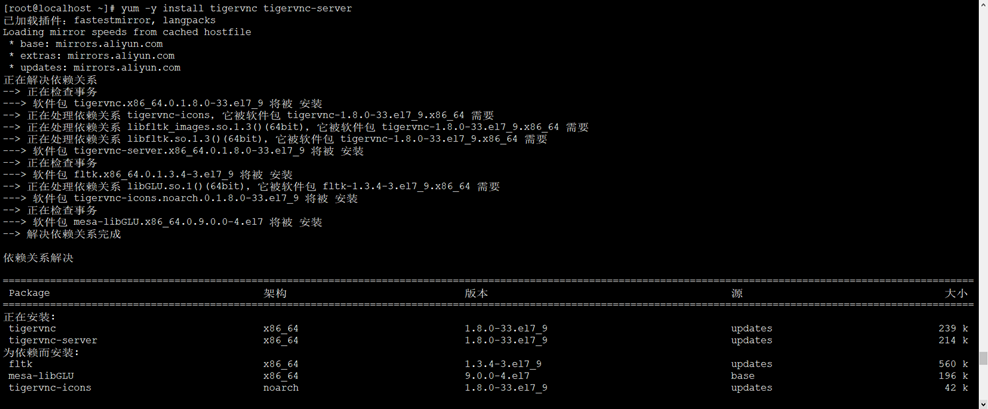
2、安装Tigervnc
[root@localhost ~]# yum -y install tigervnc tigervnc-server
3、拷贝启动文件
[root@localhost ~]# cp /lib/systemd/system/vncserver@.service /etc/systemd/system/vncserver@:1.service
4、编辑启动文件
[root@localhost ~]# vim /etc/systemd/system/vncserver@\:1.service
|
# The vncserver service unit file # # Quick HowTo: # 1. Copy this file to /etc/systemd/system/vncserver@.service # 2. Replace <USER> with the actual user name and edit vncserver # parameters in the wrapper script located in /usr/bin/vncserver_wrapper # 3. Run `systemctl daemon-reload` # 4. Run `systemctl enable vncserver@:<display>.service` # # DO NOT RUN THIS SERVICE if your local area network is # untrusted! For a secure way of using VNC, you should # limit connections to the local host and then tunnel from # the machine you want to view VNC on (host A) to the machine # whose VNC output you want to view (host B) # # [user@hostA ~]$ ssh -v -C -L 590N:localhost:590M hostB # # this will open a connection on port 590N of your hostA to hostB's port 590M # (in fact, it ssh-connects to hostB and then connects to localhost (on hostB). # See the ssh man page for details on port forwarding) # # You can then point a VNC client on hostA at vncdisplay N of localhost and with # the help of ssh, you end up seeing what hostB makes available on port 590M # # Use "-nolisten tcp" to prevent X connections to your VNC server via TCP. # # Use "-localhost" to prevent remote VNC clients connecting except when # doing so through a secure tunnel. See the "-via" option in the # `man vncviewer' manual page.
[Unit] Description=Remote desktop service (VNC) After=syslog.target network.target
[Service] Type=simple # Clean any existing files in /tmp/.X11-unix environment ExecStartPre=/bin/sh -c '/usr/bin/vncserver -kill %i > /dev/null 2>&1 || :' #ExecStart=/usr/bin/vncserver_wrapper <USER> %i ExecStop=/bin/sh -c '/usr/bin/vncserver -kill %i > /dev/null 2>&1 || :' ExecStart=/usr/sbin/runuser -l root -c "/usr/bin/vncserver %i -geometry 1280x800" PIDFile=/root/.vnc/%H%i.pid
[Install] WantedBy=multi-user.target |
5、设置VNC密码
[root@localhost ~]# vncpasswd
Password:
Verify:
Would you like to enter a view-only password (y/n)? n # 是否设置一个只读密码要选否,否则客户端登陆只会看到一个黑屏
A view-only password is not used
6、启动VNC服务并配置开机启动
[root@localhost ~]# systemctl daemon-reload
[root@localhost ~]# systemctl enable vncserver@:1.service
Created symlink from /etc/systemd/system/multi-user.target.wants/vncserver@:1.service to /etc/systemd/system/vncserver@:1.service.
[root@localhost ~]# systemctl start vncserver@:1.service
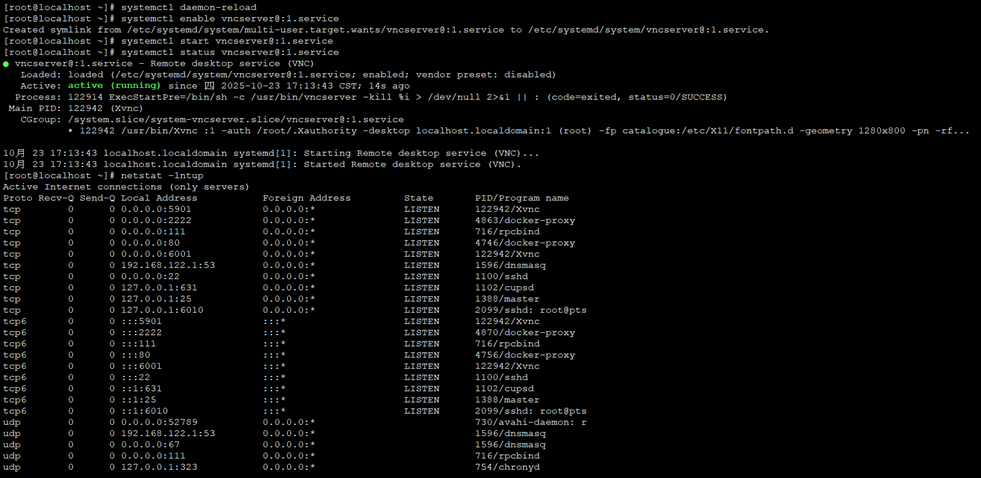
7、查看服务状态和监听端口
[root@localhost ~]# systemctl status vncserver@:1.service
[root@localhost ~]# netstat -lntup
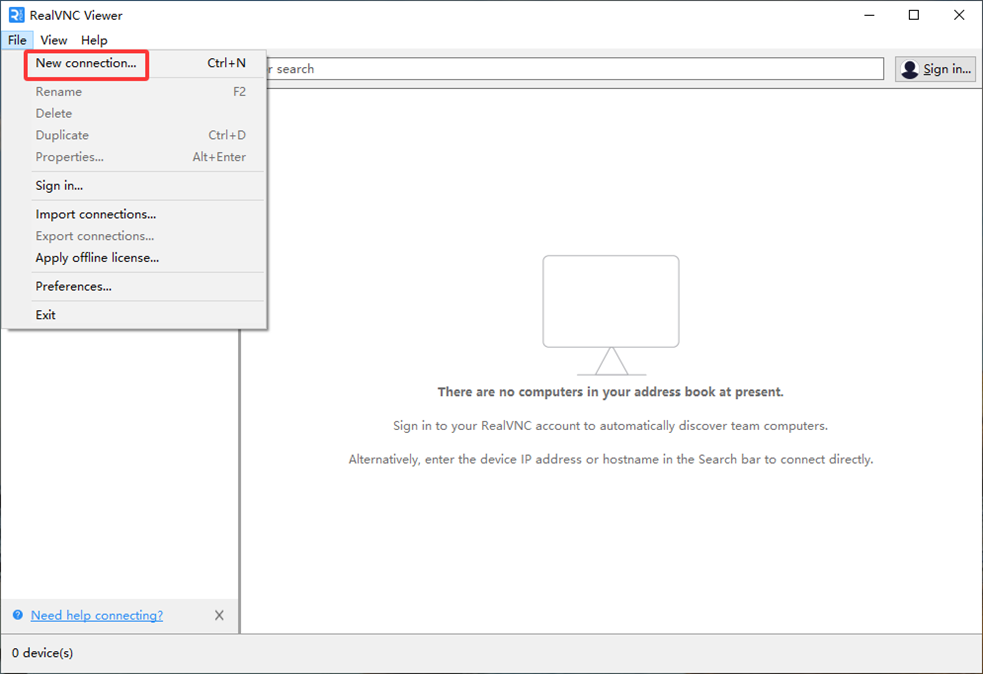
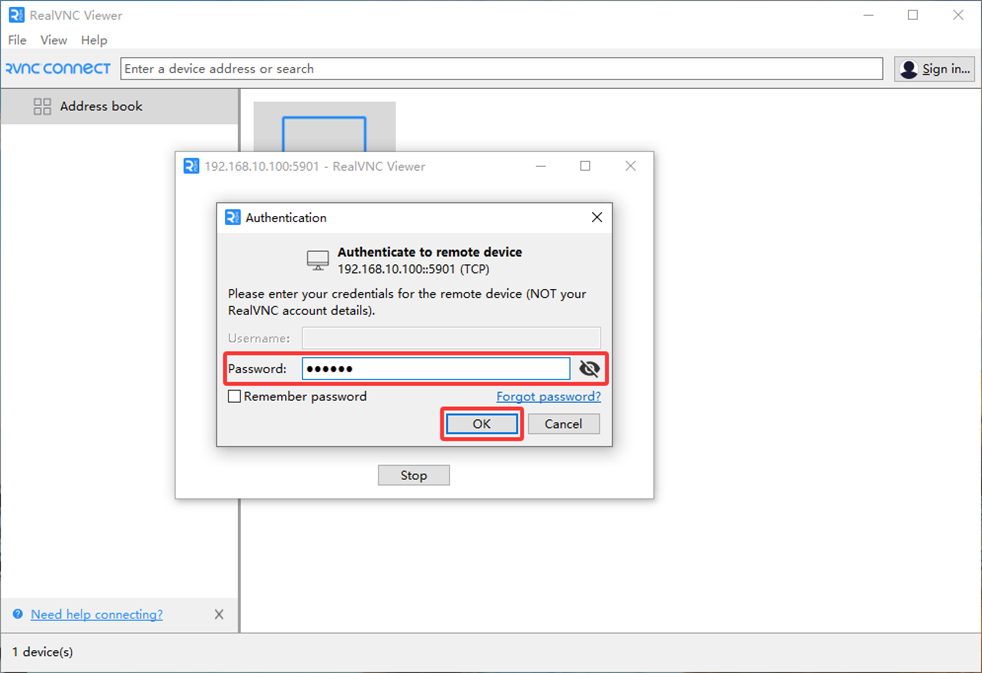
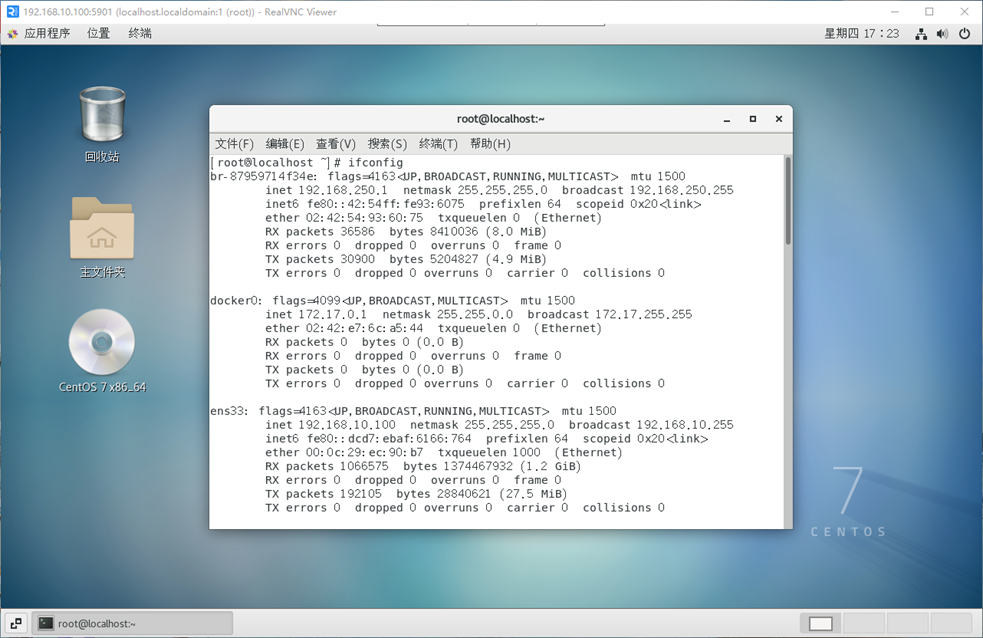
8、VNC客户端连接
# 新建连接
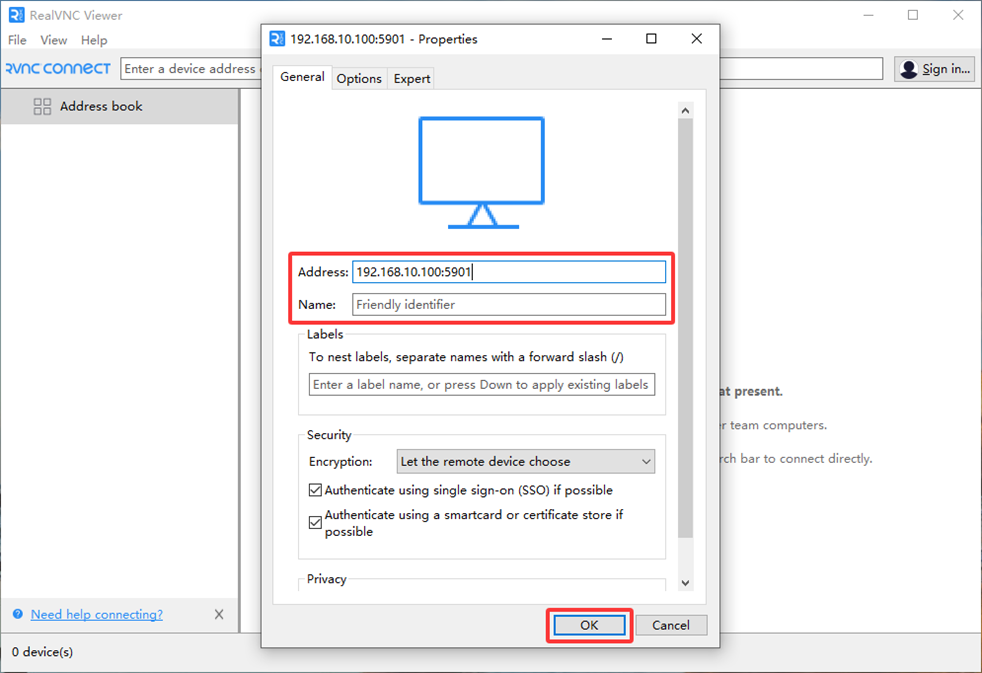
# 输入连接地址和端口
# 连接服务器
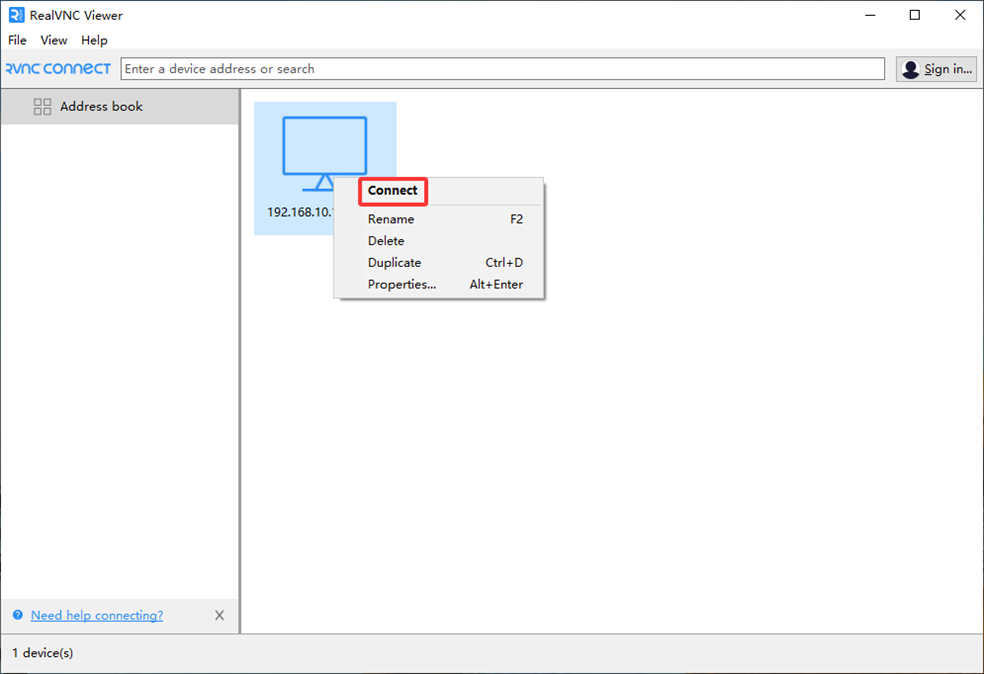
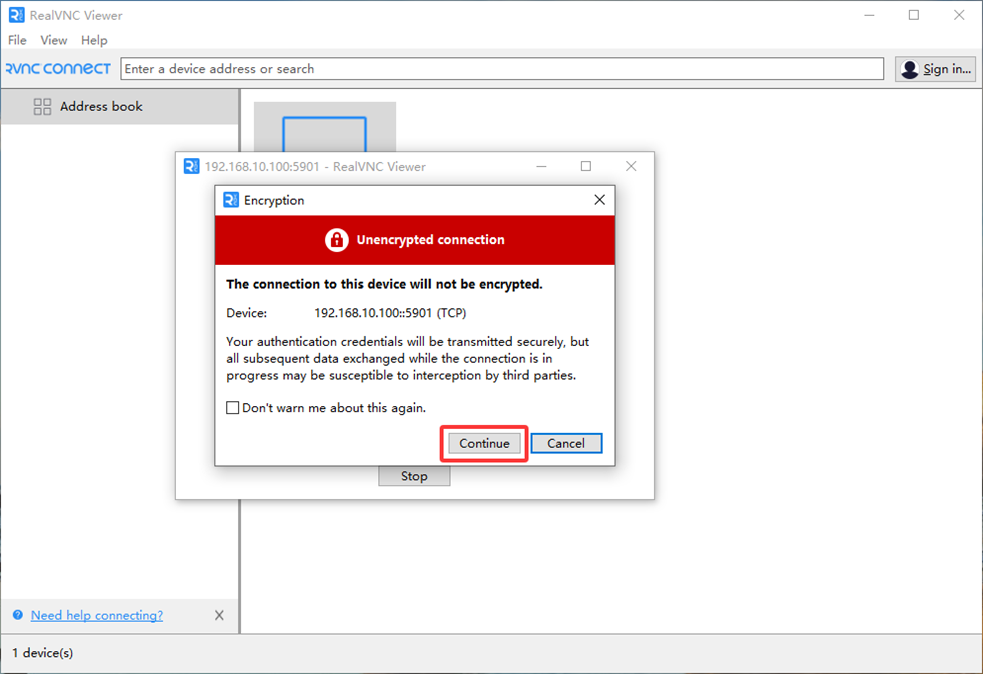
# 输入密码
# 登陆成功界面
若文章图片、下载链接等信息出错,请在评论区留言反馈,博主将第一时间更新!如本文“对您有用”,欢迎随意打赏,谢谢!


评论